Is It Safe To Put Your WhatsApp Number On Your Website?
Any WhatsApp button hands the visitor your number. So the real questions are which number, what it shows a stranger, and what you fall back on if WhatsApp locks you out.
Yes, with three changes first. Pick a number you could afford to lose. Tighten a few privacy settings on the phone that holds it. And publish it as a button with a second contact route beside it, not as digits typed onto the page.
We build a contact widget for websites, and we still think the usual advice (“just add a chat button”) skips the part people worry about. When you put your WhatsApp number on your website, you publish the number itself, to anyone who wants it, for as long as copies of the page exist. That is fine for a number you picked for the job. It is a poor idea for the one your family uses to reach you.
What Happens When You Put Your WhatsApp Number On Your Website
A WhatsApp chat is addressed by phone number. So every chat button on a web page ends the same way: the visitor’s phone is handed your number, because the link behind the button has to carry it. No button changes that, ours included.
What differs is how exposed the number is on the way there. Digits typed into a footer or a contact page are page text: search engines index them, crawlers that hunt for phone numbers collect them, and cached copies outlive your edits. Published through a Flidu WhatsApp channel, the digits stay off the visible page and out of your page’s HTML. That stops only the lazy collectors; the channel section below says what a visitor can still see.
Usernames don’t rescue a business yet. WhatsApp is rolling them out and already lets you reserve one, but its help page on business usernames (opens in a new tab) says your number will still be visible on your business profile. Reserve one anyway, and keep planning around the number.
What A Stranger Sees After They Tap
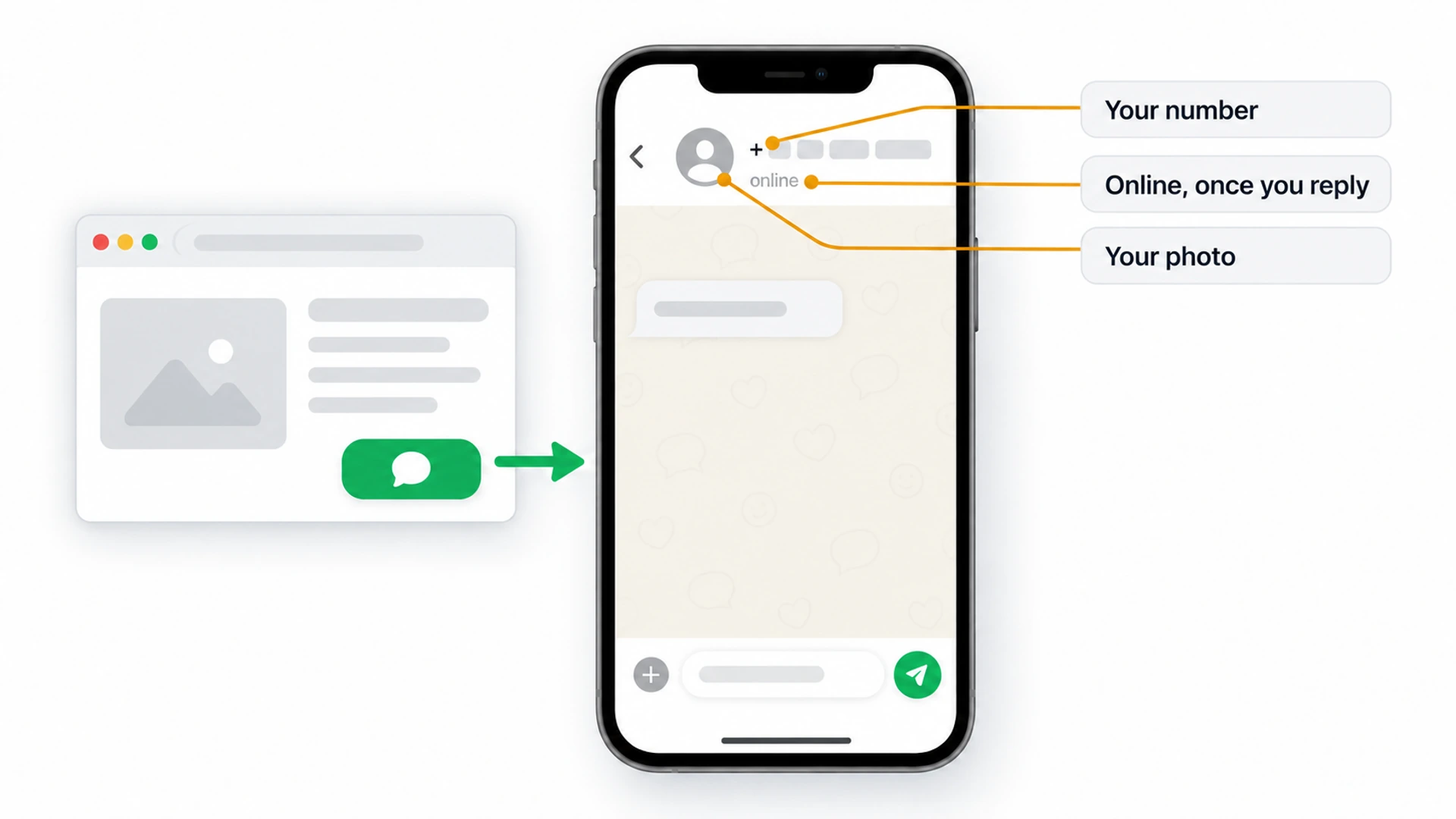
More than the number, unless you change the defaults. WhatsApp’s help center lists what a new account allows from day one:
- Your profile photo is visible to any user.
- Whether you’re online is visible to anyone you have messaged or called, which means every enquiry you answer.
- Anyone can add you to groups.
- Unknown callers can ring you, and the phone does ring.
- About text, status updates and last seen are limited to your contacts.
On a personal account, a stranger who taps your button sees your face, or your children’s, or whatever the photo happens to be.
The Real Risks, In The Order We Would Worry About Them
- Messages at any hour. Close to certain, and how the thing is meant to work. A website has no closing time.
- Spam and scam messages. A published number gets collected. We have no trustworthy figure for how much junk to expect, so plan for some.
- Your private life showing. Your photo on view to anyone and strangers adding you to groups, both from default settings.
- Losing the number or the account. The least likely and the most expensive: a ban or a hijack takes every conversation in progress with it.
Look at how little of that list is about the button. Most of it comes from which number you publish and how its phone is set up, so start there. The button decides the rest: what sits in your page text, what a first message says, which hours visitors expect, and whether they have anywhere else to go.
Personal Number, Business App Or A Second Number
Our position: if you put your WhatsApp number on your website, it should not be a personal one. Partly that is about your evenings, partly the rules: the ordinary app’s terms list “any non-personal use” among the things you agree not to do unless WhatsApp has authorized it. The free WhatsApp Business app is the one made for trading, and WhatsApp’s registration requirements (opens in a new tab) say that to run both you need a unique phone number for each app.
| Option | Works When | The Catch |
|---|---|---|
| Your only number, in the Business app | You have one phone and one SIM | It stops being private |
| A second SIM or eSIM | Your phone supports dual SIM | A monthly cost, possibly a reissued number |
| The business landline | You have a shop or office line | Business app only, no extensions |
| A virtual or VoIP number | We would not use one | WhatsApp lists VoIP as unsupported |
Don’t overlook the landline. It is already on your van and your invoices, so it was never private, and the Business app will verify it by voice if you tap Call me. We would skip the virtual number: WhatsApp asks for a code again whenever you change phones, and a number its own page calls unsupported is a risky thing to depend on then.
Test a new number before you print it. Carriers reissue old ones, and WhatsApp’s help page on bans says one may arrive already banned because of its previous owner.
Change These Settings Before The Number Goes Live
Do this on the phone that now holds the number, before it is anywhere on the site. The paths are from WhatsApp’s help center.
- Hide the photo. In Settings > Privacy > Profile photo, choose My contacts on a personal number. On a business number, use a logo and leave it visible.
- Limit your online status. In Settings > Privacy > Last seen and online, restrict last seen, then set online to match it.
- Stop strangers adding you to groups. In Settings > Privacy > Groups, change Everyone to My contacts.
- Silence unknown callers, if you take enquiries by message, in Settings > Privacy > Calls. Those calls wait in the Calls tab, and once you’ve replied to someone, theirs ring as normal.
- Switch on Block unknown account messages in Settings > Privacy > Advanced. Despite the name, it acts only when unknown accounts send a high volume, so real enquiries still arrive.
- Lock the account. In Settings > Account > Two-step verification, set the password it asks for (a six-digit PIN on older versions) and add a recovery email. And never pass on a registration code you didn’t request, even to a “customer” who says it reached you by mistake.
Quiet Hours Are Set On The Phone, Not On The Website
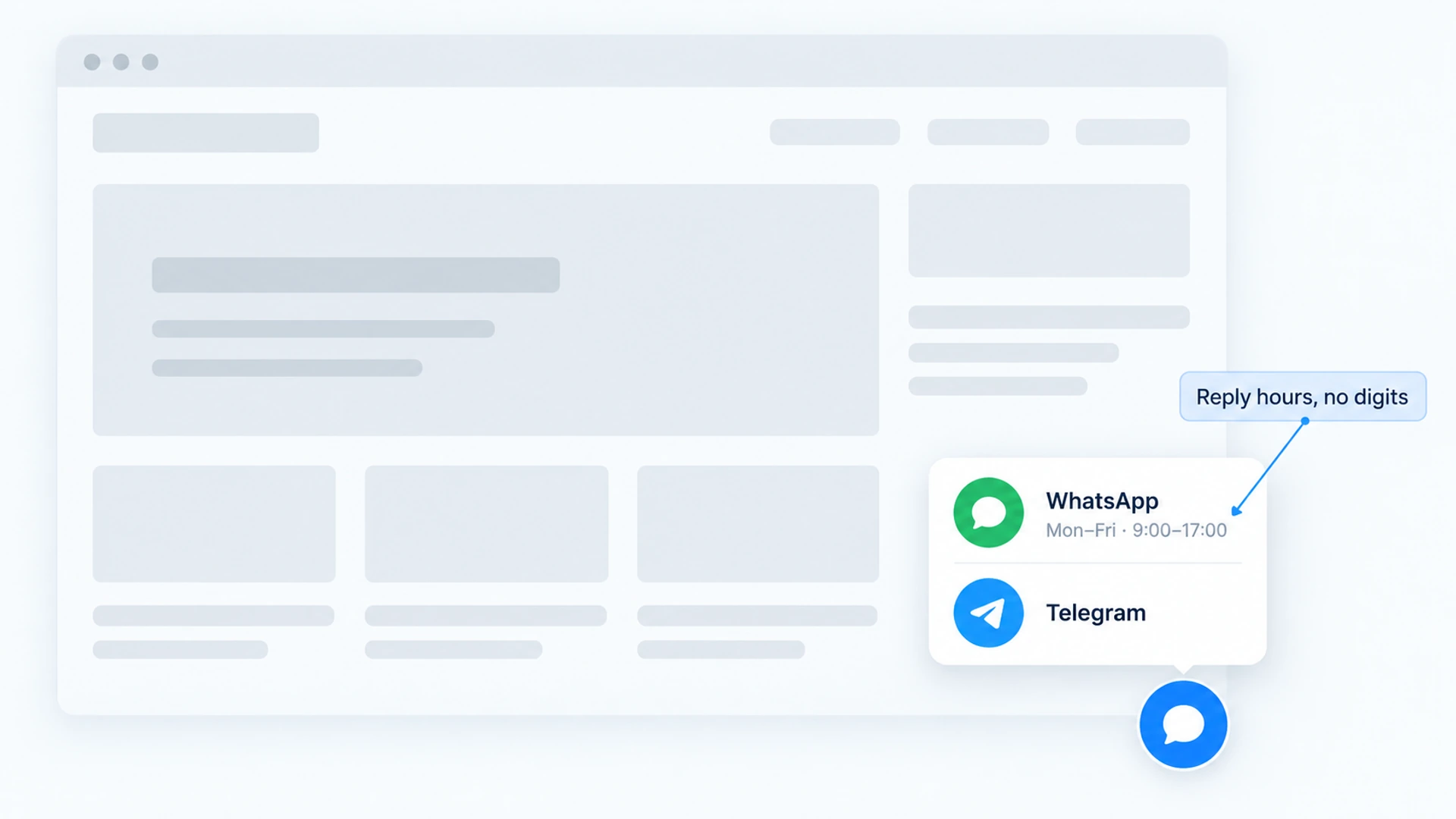
Nothing on a website can hold a message back until morning. A Flidu widget can show your reply hours under the WhatsApp row, which sets expectations and nothing more. The 11pm reply has to come from the free WhatsApp Business app: open Tools (Business tools on some versions), then Away message, turn it on, tap Schedule and pick Outside of business hours. That option only appears once you’ve set hours in your business profile, and the phone must be online for the reply to go out. The ordinary WhatsApp app has no away message.
Thanks for your message. We reply on weekdays between 9am and 5pm, and we will answer this one first thing. If it cannot wait, the other ways to reach us are on our website.What the site itself can offer a visitor at 11pm is its own subject: how to capture leads after business hours builds it up in five layers.
Never Make WhatsApp The Only Route
WhatsApp’s Terms of Service say the company “may modify, suspend, or terminate your access to or use of our Services anytime for any reason”. That is a contract term, not a threat, but it should shape how you build a contact page.
Here is what a ban looks like, going by WhatsApp’s help page on account bans (opens in a new tab). The app tells you the number can’t use WhatsApp. If it offers Request review, WhatsApp says most reviews are completed within 24 hours. If no review option appears, the same page says the ban is final and can’t be appealed. While it lasts, you can’t open your chat history or your backups.
Stay on the official app and never bulk-message, and you remove the obvious causes. How often a well-behaved small business gets banned by mistake, we don’t know. And a ban is only the dramatic case: a dropped phone does the same job for a week. So a safe setup needs one route beside the button that doesn’t pass through WhatsApp at all. Contact form versus WhatsApp button runs the two side by side for a month and counts what arrives.
Publish The Number Through A Flidu WhatsApp Channel
We build this part, so weigh our view accordingly. Flidu is a website widget: one launcher in a bottom corner of the page that opens a short list of ways to reach you. WhatsApp is one of those channels, and in Single Agent mode (one number) the WhatsApp channel is on Website Widgets Free.
What A Visitor Can And Cannot See
The widget shows a WhatsApp row with one line under it: your Description if you wrote one, your reply hours if you left it empty. It doesn’t print the digits, and they aren’t in your page’s own HTML either, because all you paste is the Flidu script.
It does not hide the number. The widget has to give the browser a WhatsApp link to open, and that link arrives when the widget loads. So the digits reach every visitor’s browser whether they tap or not, and WhatsApp shows them the number once they do. On a desktop, most browsers show the link, digits included, when the pointer rests on the row. A collector that only reads page text finds nothing. One that runs the page’s scripts can still dig it out, and we can’t say what share do.
The Setup, Step By Step
- Create a free account. In the dashboard, open Website Widgets in the sidebar and start a new widget. The New Website Widget flow has five steps; at Starting Setup, choose Start from scratch. If you already added your site during sign-up, open it from Website Widgets instead.
- Open the widget’s Channels tab, choose Add Channel and pick WhatsApp from the Direct Contact group. If you ticked WhatsApp while creating the widget, this opens that draft.
- Leave Mode on Single Agent. Type the Phone number in full international form, country code first, because Flidu can’t add a missing one. Agent name is required too: use the business or a role such as Enquiries.
- In the Displayed Availability card, switch Shared Schedule from Always Available to Custom Hours and enter the hours you reply. Left alone, the row tells visitors Available 24 hours. Keep the agent’s own Availability on Shared hours, and leave Description empty, or it replaces the hours line.
- Write a Prefilled message, the first line a visitor arrives with (example below).
- Press Test on WhatsApp and check the chat opens on the right number with that line typed.
- Check that Enabled in draft is on, choose Save as Draft, then Publish changes. Until you publish, the channel stays a draft.
- On the Install tab, copy the snippet and paste it once before the closing body tag, or into your platform’s footer custom-code area. Open your site, then press Verify Installation: the status reads Not detected yet until your site has loaded the script. Details are in the install guide.
A visitor who taps the row arrives in WhatsApp with the Prefilled message already typed, and a message sent to a scraped list won’t start that way. Treat this as a rule of thumb, since visitors can edit or delete the text.
Hi, I found you on your website and I have a question.If the number turns sour, Settings > Account > Change number in WhatsApp moves the account, you change the Phone number in the channel and publish again, and the site follows without another paste.
Add A Second Route In The Same Widget
Under Social & Links, the same Add Channel panel lists Telegram, Messenger and Instagram DM, all on Website Widgets Free and each opened from a username or a Page, not a phone number. Only Telegram has a different owner from WhatsApp, which matters in a fallback.
For a route with no messaging account behind it, add a Custom Link from that group: type a phone number or an email address into its Link URL field, choose the Phone or Mail preset icon and set a Display label such as “Call now”. Below Website Widgets Business a widget gets one live Custom Link, Free included, so pick calls or email.
From Website Widgets Starter, a Contact Form is another: it emails each submission to the notification address you set.
What Flidu Does Not Do
- Spam isn’t filtered, and Flidu has no say in whether WhatsApp bans an account.
- A call button isn’t a call. It doesn’t hide its number either, a tap only opens the dialer, and on a desktop that takes a calling app.
- Conversations stay in WhatsApp. Flidu doesn’t store or read them, and replying is still your job.
Test As A Stranger Once You Put Your WhatsApp Number On Your Website
Your own phone is the worst test device, because it already knows you. The moment the widget is live, borrow a phone that has never saved the number, open your site and tap the WhatsApp row. Look at what its owner sees: the hours under the row, the typed first line, then your number and photo inside WhatsApp. Send a message outside your hours and wait for the away reply. If the tap opens nothing or an error, WhatsApp button not working on your website sorts the fixes by symptom.