How To Add A WhatsApp Button To Squarespace (Both Ways)
One script, pasted once for the whole site or into a single page. The plan you need, the steps in order, and what to check when the button does not show.

Squarespace has no WhatsApp button of its own. Its mobile information bar offers Email, Call, Map and Hours, and by its own help pages a WhatsApp link among the social icons shows up as a generic link icon. So if you want to add a WhatsApp button to Squarespace, something else has to draw the button and carry your number, and it has to reach the site as custom code. That last part puts people off. Code Injection sounds like surgery, and it sits behind a plan.
In practice it is one paste. We build Flidu, a website widget with WhatsApp as one of its contact channels, so that is what this guide uses. You set the number and the opening message in a dashboard, copy a single line of script, and put it on Squarespace in one of two ways.
- Every page. The script goes into Squarespace’s site-wide Code Injection once, and the button follows visitors around the whole site.
- One page only. The same script goes into that page’s own settings, so the button exists there and nowhere else.
Our view: go site-wide unless you have a reason not to, because people decide to message you from whatever page they happen to be on. The one-page route suits a campaign landing page, or a quiet first try.
What You Need Before You Add A WhatsApp Button To Squarespace
You need a Squarespace plan that accepts custom code, a number that already works in WhatsApp, and a free Flidu account. Check the plan first. The WhatsApp channel with a single number is on the Free plan of Website Widgets (pricing has the limits), so for one number the cost question sits on the Squarespace side.
Which Squarespace Plans Allow Code Injection
As of October 2026, Squarespace’s code injection page (opens in a new tab) says the feature is available on the Core, Plus and Advanced plans and “some legacy billing plans”. Its legacy plans page (opens in a new tab) shows which: Business, Commerce Basic and Commerce Advanced include custom code, and the Personal plan’s feature list leaves it out. Squarespace’s list of premium features (opens in a new tab) counts code injection, “site-wide and per-page”, among the things the Basic plan doesn’t have.
So both ways need the same plan, and a single page is no cheaper. Squarespace’s 14-day trial includes most premium features, it says, without listing them, and a trial site stays private until you pay, so the private-window check later needs a site-wide password first. Treat all of this as a snapshot, and read those pages before you upgrade for a button.
A Number WhatsApp Will Accept
Flidu asks for the number once, and how you type it matters. Enter it in full international format: country code first, no leading zero. A UK mobile written 07700 900123 goes in as +44 7700 900123. Flidu strips the spaces and punctuation for you. It can’t add a missing country code or drop a local zero, and WhatsApp turns away a number in the wrong shape.
Set Up The WhatsApp Channel In Flidu First
Do this part before you open Squarespace, so the script you paste already has something to show. The setup guide covers the whole flow; these are the steps for a widget with WhatsApp and nothing else.
- Create a free account, open Website Widgets in the dashboard sidebar and start the New Website Widget flow: Website Details, Starting Setup, Channels, Appearance, then Preview & Create.
- In Website Details, give the site a name, enter the Website Domain your visitors use (your custom domain, if you have connected one) in bare form, like example.com, and add a notification email.
- On Starting Setup, pick Start from scratch if WhatsApp is all you want. The other option adds a Contact Form draft, and Contact Form starts on Website Widgets Starter.
- Tick WhatsApp on the Channels step, choose the corner under Position on the Appearance step, then press Create Website Widget on the last one.
- Channels picked in the flow begin as drafts. Open the widget’s Channels tab, find the WhatsApp row in Channel Builder and press Edit.
- Leave Mode on Single Agent and fill in Phone number and Agent name, both required.
- Add a Prefilled message if you want the chat to open with a line already typed, such as “Hi, I have a question about your services.” Leave it blank and the chat opens empty.
- Try Test on WhatsApp, which appears once a number is in and opens the chat a visitor will get. This is the moment to catch a wrong digit.
- Press Save as Draft, then Publish changes. Until you publish, WhatsApp is not on the widget.
If you made a site while signing up, skip the flow. Open that site from Website Widgets, review its Channels tab, then click Add Channel, pick WhatsApp and carry on from step 6.
Way One: Every Page, Through Squarespace Code Injection
Squarespace’s Code Injection panel has a Footer field. Code added there is injected before the closing body tag on every page of the site, which is where the Flidu install instructions ask for the script.
How To Add A WhatsApp Button To Squarespace Site-Wide
- In Flidu, open the widget’s Install tab and press Copy. The snippet already contains your widget key.
- Open the Pages panel in Squarespace, click Custom Code at the bottom, then Code Injection. On a version 7.0 site the same option sits under Website Tools. If it isn’t there, the help page linked above has a link that opens the panel.
- Paste the snippet into the Footer field.
- Click Save.
- Load your site in a private or incognito window and look for the launcher in the corner you chose.
- Back on the Install tab, press Verify Installation.
<script defer src="https://flidu.com/widget.js" data-widget="YOUR_WIDGET_KEY"></script>Visitors get a round launcher in the bottom corner. They open it and tap WhatsApp, and a chat with your number opens, with your prefilled message already typed if you wrote one. From there the conversation lives in WhatsApp, and Flidu sees none of it.
After that, a new number, different wording or a second channel is a change in the dashboard, with no second paste. The install reference has more on placement.
Way Two: One Page Only, Through Squarespace Page Settings
The other way to add a WhatsApp button to Squarespace keeps it to a single page. Squarespace pages have their own injection field, and the same Flidu snippet goes there in place of the site-wide panel.
- In the Pages panel, hover over the page and click the gear icon.
- Click Advanced.
- Paste the snippet into Page Header Code Injection and save.
- Open that page in a private window and look for the launcher itself, then press Verify Installation as before.
This field puts code in the page’s head, not at the end of the body. The Flidu Install tab asks for the end of the body and says the head also works if needed, so step 4 is the real test: if the launcher isn’t on the page, fall back to Way One. Two cautions come from Squarespace. On version 7.1 it warns against adding HTML to this field, because the code disappears if you turn off the header’s transparency. We haven’t confirmed whether a lone script tag is caught by that, so if the button vanishes after a header change, look here first. And on version 7.0, page-level code won’t appear on Index landing pages.
Use one way per widget. Paste the same snippet into both the site-wide Footer and a page’s header and it runs twice on that page.
Why The Button Is Missing In The Squarespace Editor Preview
You paste, save, look at the editor, and there’s no button. Before you change anything, check where you’re looking.
The logged-in editor is not a faithful copy of the live site. When injected code gets in its way, Squarespace offers a Disable Scripts in Preview button, and from then on the preview runs without your scripts until you press Enable Scripts in Preview. Its own instruction for seeing a site with custom code enabled is to open the site URL in a private or incognito window. Make that your only test.
Read The Flidu Install Status
On the Install tab, the status under Verify Installation reads “Not detected yet” until the script has loaded on your site. Load a page in that private window, press the button again, and it should confirm the installation and say when the widget was last detected. The Overview tab’s Install card carries the same signal: Live on followed by your domain. Until then it says the widget is published but not seen on your domain yet, which points at the paste, not the widget.
If It Is Missing On The Live Site Too
- WhatsApp is still a draft. Then the launcher can load with no WhatsApp inside it. On the Channels tab, the row should say it is published on your widget.
- The widget itself is a draft. Rare: a first widget is normally published when it is created. The Overview tab’s Install card will say so; publish it from the Website Widgets card there and reload.
- Squarespace has switched the code off. After a move down to Basic, code injection is disabled. The snippet stays in the panel and no longer runs.
- Some pages don’t take injected code. Checkout pages don’t support code, by Squarespace’s own account. And on the version 7.0 templates that use Ajax loading, it says Ajax may occasionally conflict with embedded custom code.
The widget-not-showing checklist takes the rest in order. If the launcher shows and WhatsApp won’t open, that is a different fault, and WhatsApp Button Not Working On Your Website sorts those by symptom.
Choosing The Corner So It Clears The Squarespace Mobile Bar
Flidu’s launcher sits in the bottom right or the bottom left, and that is the whole choice: Position, on the widget’s Appearance tab, with no finer nudging. On a phone it shares the bottom of the screen with two things Squarespace may have pinned there.
The Mobile Information Bar
This is Squarespace’s own contact strip for phones: a banner of buttons along the bottom of the site. Squarespace says it appears when a visitor is at the top of a page and disappears as they scroll down, so any overlap happens on the first screen.
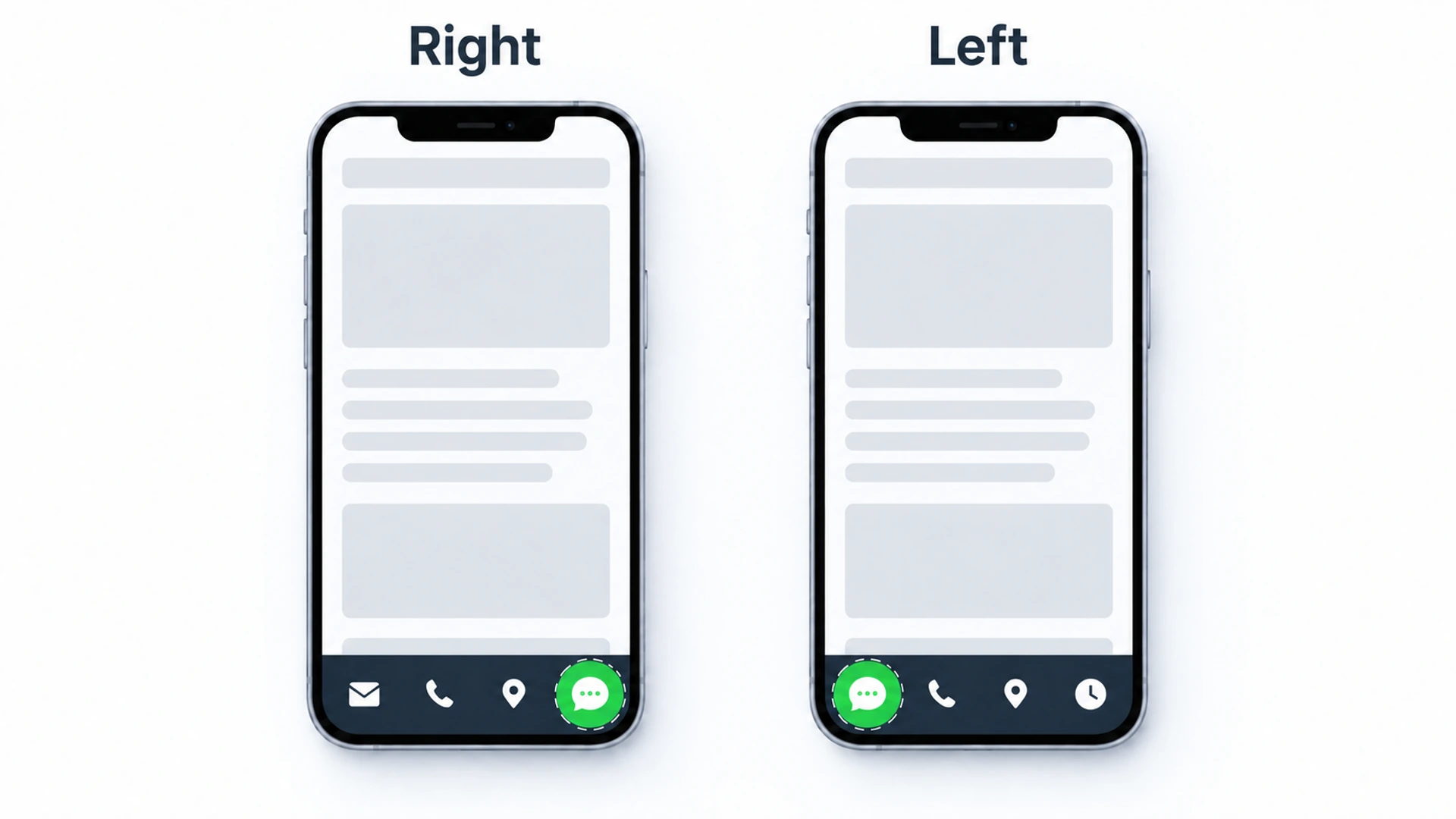
A banner along the bottom means the launcher and one end of the bar can land on the same spot, whichever corner you pick. Load the site on a real phone at the top of a page, see which of the bar’s buttons the launcher lands on, and switch corners if it’s one you need. If both ends matter, you either live with a brief overlap at the top of each page or turn the bar off.
The Cookie Banner
Squarespace’s cookie banner has a position setting, and Top is one of its positions. If banner and launcher share the bottom of the screen, a first-time visitor can meet a chat button sitting on a consent button. Move the banner, or switch the launcher’s corner. The banner doesn’t display while you’re logged in, so check it in the private window too. Stop Your Chat Widget Covering Content On Mobile has the full phone audit.
What A Flidu Button On Squarespace Will Not Do
- There is no Squarespace extension. Flidu installs as a pasted script and nothing else, so a free Flidu plan never makes code injection free.
- Squarespace support won’t debug it. Added code is outside the scope of their support, so questions about the widget come to us.
- Free means one number. Multiple Agents mode, where the visitor picks between contacts, starts on Website Widgets Starter.
- Tap counts are not on Free. Website Widgets Free shows usage counters only. Channel clicks appear in Analytics from Website Widgets Starter, and How To Track WhatsApp Button Clicks In GA4 covers sending them to Google Analytics, which starts on Website Widgets Pro.
- The chat is not in Flidu. The widget hands the visitor to WhatsApp and stops there. No messages are stored, and somebody still has to answer.
That last one matters most. A button on every page works at eleven at night too, and a new WhatsApp channel tells visitors “Available 24 hours” until you change Displayed Availability in its editor. If most of your messages will arrive when nobody is near the phone, read How To Capture Leads After Business Hours before you publish.