Does A Small Business Need Live Chat Or Will A Chatbot Do?
Most small teams can’t staff a chat window, and that’s fine. Here is a test you can run in a week, and the setup we’d use if you fail it.

A live chat window that nobody answers is worse than no chat at all. On a page with no chat, a visitor reads what’s there and makes up their own mind. Give that visitor a dead chat box and they type a question, watch it for a minute, and leave knowing something they didn’t know before: this business invites questions it doesn’t answer.
So does a small business need live chat? Usually not, in our view, and never before it passes one test: a named person can reply within a couple of minutes, for every hour the window is on the page. We’d expect most small teams to fail it. For them a chatbot will do, provided the questions it can’t answer reach a person, with an honest reply time attached. Here is the test, then how we’d build that in Flidu, the widget we make, and where it stops.
Does A Small Business Need Live Chat? Run The Staffing Test
The test is three questions. Answer them about the week you actually had, not the one you planned.
- Who answers? Write down a name. “Whoever is free” is not a name, and in a three-person business it usually means nobody.
- During which hours? List the hours that person is at a screen and can be interrupted. A plumber under a sink can’t be. Neither can a dentist with a patient in the chair.
- How many questions arrive before a sale? Count last week’s across phone, email and social messages. If the total is three, a staffed chat is a lot of readiness for very little use.
Then apply the rule strictly: never show a live chat you cannot answer within minutes. Two minutes is our rule of thumb, not a measured threshold. Pick a number you can hit every time.
The second question is where it usually falls down: the person exists, but spends the day doing the work the business sells. Nothing is wrong with that business. Live chat is the wrong promise for it.
Why Minutes And Not Hours
Every contact method on a website makes a promise about time. A form says we’ll get back to you. A chat bubble in the corner says someone is here now, because that’s what chat means everywhere else people use it.
Break that promise and people notice. Nielsen Norman Group’s 2019 usability study of customer-service chat (opens in a new tab) reported that “long wait times made users feel undervalued”, and one of its twenty guidelines is to state the hours whenever chat isn’t always staffed. Eight people took part, so read it as a pointer, not proof.
A One-Week Dry Run Before You Install Anything
For one work week, have a friend text you a plausible customer question at five times you can’t predict, inside the hours you’d post on the site. Five replies inside two minutes and you can probably staff a chat. If two took forty minutes because you were on a job, you have your answer, and no real visitor was let down to get it.
When Does A Small Business Need Live Chat After All?
Some pass easily. Somebody already sits at a computer all day, and an unanswered question stalls a sale that was close. Say you rent out event equipment, one person is at the office desk from eight to five, and visitors keep asking whether the large tent will fit a sloping backyard. Only a person can judge that, and a typed answer inside a minute can rescue the booking.
That is a live chat business, and staffed chat isn’t the tool we make. The rest of this article is for the teams that failed the test.
A Chatbot Will Do If It Hands Off To A Person
Most chatbot versus live chat comparisons end on the same advice: run both. That’s no help when every person you have is out doing the paid work.
Split the job in two instead. The first half is the repeat questions: opening hours, prices, delivery areas, how long a job takes. Those have fixed answers. They need writing down, not staffing. The second half is everything else, which needs a person, just not this minute. A bot that meets it with “sorry, I can’t help with that” and nothing else breaks the same promise an empty chat window does.
So the setup for an unstaffed team has three parts: a bot for the repeat questions, one route to a person who replies when free, and the reply time stated before the visitor writes. The promise shrinks from someone is here now to you’ll hear from us by tomorrow morning, and that one you can keep on your busiest day.
How To Set It Up In Flidu
Flidu is one widget with two tabs: Ask AI answers from the sources you approve, and Contact holds the routes to a person. They share one widget and one install but are separate product lines with separate plans, AI Chatbot and Website Widgets, each with a Free plan. Build the Contact side first. It is the part that must never fail.
Step 1: Give Visitors One Route To A Person
- In the dashboard, open Website Widgets in the sidebar and start a new widget, ticking WhatsApp on the flow’s Channels step. If you made a site during sign-up, open that one instead.
- On the widget’s Channels tab, open the WhatsApp channel in the Channel Builder, or choose Add Channel if it isn’t listed. Keep Mode on Single Agent, then fill in Phone number, country code included, and Agent name.
- Write your hours and reply time into Description. In Single Agent mode it is the one line of small print a visitor sees under the WhatsApp title. Promise a time you can beat on your worst normal day.
- Add a Prefilled message, such as “Hi, I have a question before I book”, so the chat opens with a useful first line.
- Check that Enabled in draft is on, choose Save as Draft, then Publish changes. Test on WhatsApp opens a chat with your number, so you can send a test message.
We reply Monday to Friday, 9am to 5pm, usually within two hours. Outside those hours you will hear from us the next working day.Visitors get a WhatsApp row in the widget. Tapping it opens a chat with your number in WhatsApp, where the conversation stays and we never see it. This channel is on Website Widgets Free.
For customers who would sooner email, add the Contact Form channel, which starts on Website Widgets Starter. It sends a name, an email and a message to the Notification email you set, then shows your Success Message. Put the reply time in the form’s Description, where it’s read before anyone writes.
Step 2: Show The Hours You Actually Answer
A reply time only helps if it’s seen before the visitor writes, and your Description now does that job. One default can undo it. The WhatsApp channel’s Displayed Availability card has a Shared Schedule control that starts on Always Available, which visitors read as Available 24 hours. A filled-in Description takes that line’s place, but clear it one day and the 24-hour line is back. Switch the control to Custom Hours and enter the hours you answer.
On Website Widgets Starter you can add the Business Hours channel too: its own row, opening to your week with each day’s hours or “Closed”, and a short note underneath. None of these settings knows whether you’re at your desk. They display what you typed, which suits a setup that promises hours, not presence.
One gap is WhatsApp’s to fill, not ours: the message that arrives at 10pm. The WhatsApp Business app can send an away message (opens in a new tab) outside the business hours on your profile.
Step 3: Let Ask AI Take The Repeat Questions
Ask AI answers from sources you approve, so the answers have to exist in writing first. Go through last month’s sent emails and messages, pull out every question you answered more than once, and give each a clear answer in the body of a page on your site, not only in its header or footer. Chatbot Versus FAQ Page explains why the page comes before the bot.
- Open AI Chatbots and choose Create AI Chatbot. Five steps follow, from Basics to Preview & Connect.
- On Basics, write a Greeting Message, the first line a visitor sees in Ask AI, and say plainly that it’s an assistant answering from your website. The launcher is still a corner button, so this line sets the expectation.
- In Data Sources, choose Add Source. A Manual URL List reads exactly the pages you name, up to 25; a website URL or sitemap reads a limited batch per crawl. Then press Start indexing: nothing is read until you do.
- On the last step, ask the preview the ten questions you hear most; each counts toward your monthly AI messages. Where answers are wrong or missing, fix every page first, not the bot, then Recrawl the source once its card shows that’s available again. Each plan has a monthly recrawl allowance.
Step 4: Join The Two Tabs And Install Once
At the Preview & Connect step, pick Add to an existing Website Widget and choose the widget from step 1, which has to be published. Ask AI joins it as a draft and stays private until you choose Publish Ask AI on the assistant’s Preview tab. First, add a few prompts on its Suggested Questions tab, pointing visitors at what your pages do answer; three can be live on AI Chatbot Free. Once you publish, visitors see both tabs.
Then open the widget’s Install tab, copy the snippet and paste it once just before the closing body tag of your site, or into your platform’s footer custom-code area. There is no plugin. Later changes happen in the dashboard, not on the site. The setup guide covers each step.
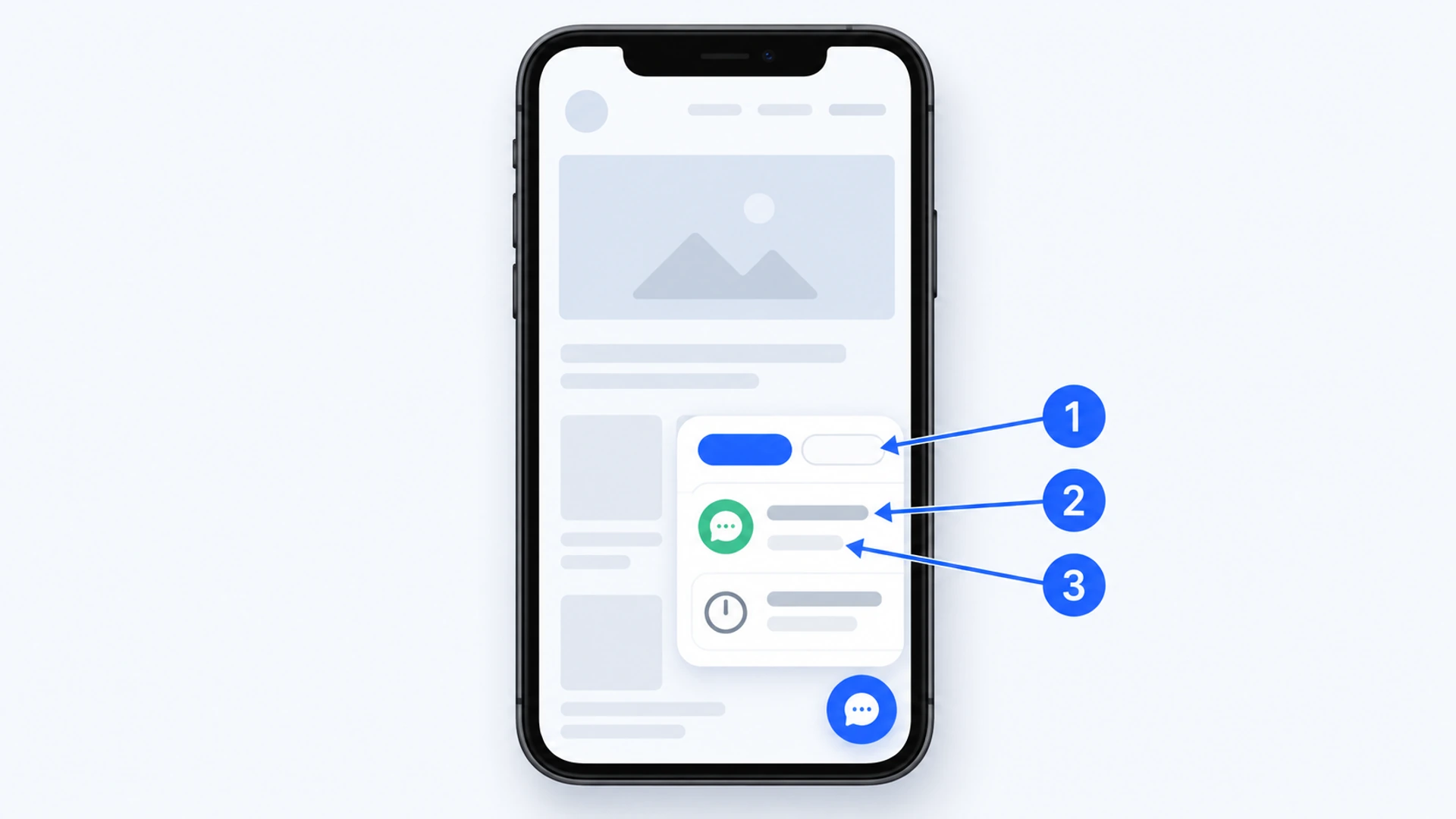
Last, miss on purpose. Ask the live widget something your pages don’t cover and read the reply as a visitor would. You can’t write that reply: Ask AI is built to say when your sources don’t cover a question, in its own words. The Contact tab sits beside it; the visitor makes the switch, and nothing they typed carries over. That is the whole hand-off, and why the Contact side had to work first.
From AI Chatbot Starter, the assistant’s Settings tab adds Visitor Capture. Contact Intent Capture can offer a short contact form when a visitor’s message asks to talk to someone, and Fallback Capture can show it when Ask AI can’t respond at all, such as after the month’s AI messages run out. What a visitor leaves is emailed to you. Our chatbot fallback message examples give copy-ready lines for the greeting and the channels.
Where Flidu Stops
Flidu isn’t live chat. There is no reply inbox on our side, no live indicator of who is online, no routing between staff, and nobody can step into an Ask AI conversation. You answer later, from your own phone or email. And if your answer to “does a small business need live chat” turned out to be yes, none of this replaces it.
- Ask AI can’t answer what your approved sources don’t cover.
- AI Chatbot Free covers one assistant, 50 indexed pages and 100 AI messages a month. Once a busy site uses them up, Ask AI shows “This feature is temporarily unavailable.” until the allowance resets, while the Contact channels keep working.
- The Contact Form and Business Hours channels need Website Widgets Starter, whatever you pay for AI Chatbot. Both product lines are on the pricing page.
- On the Free plans the dashboard shows usage counters only. Seeing which questions visitors asked starts on AI Chatbot Starter.
At a handful of questions a month, skip Ask AI and run the Contact side alone. The three checks in Is An AI Chatbot Worth It For A Small Business? Often Not tell you which case you’re in.
Run It For A Month And Keep A Tally
Don’t judge it in the first week. Give it a month and keep a tally by hand, because your replies happen outside the widget, where no dashboard can see them:
- Questions received, and the route each one took.
- Your slowest reply, not your average. That visitor got the whole broken promise.
- Repeats. Each one belongs on a page Ask AI can read, and What To Do With Unanswered Chatbot Questions Every Month covers the monthly review.
By the end you’ll know whether to widen the hours, change the promise or drop a channel. Changing the promise is a legitimate result. A description that says “we reply within one working day” and then does is better service than a chat bubble that isn’t telling the truth.