
The Service Business Website Checklist To Run On Your Phone
Ten things to tap, find and send on a real phone before you expect your site to bring in work. Where a call, hours, message, form or booking check fails, we show the widget setup that fixes it.
Take out your phone, not your laptop. The laptop is where your website was built and signed off, on a wide screen and good Wi-Fi, by people who already knew what the business does. The person you want to hear from next is holding a phone in one hand and has never heard of you.
This service business website checklist is written for that person’s screen. It has ten checks, each something you do with your thumb: tap the number, find the hours, find a price, send a message. Every check ends in a pass or a fail. There’s no mostly.
An eleventh item is on paper: who answers each contact route. We’d bet it’s the one nobody has filled in.
Some fails are writing jobs, and we say so. The ones about reaching you (a call, hours, a map, a message, a booking) we fix with Flidu, the contact widget we build; the setup is below, with the plan each part needs. Allow an hour.
How To Run This Service Business Website Checklist
- Switch off Wi-Fi so the phone is on mobile data. Office Wi-Fi flatters every site.
- Open a private tab, to get the cookie banner and pop-ups a first-time visitor gets.
- Arrive as a customer would: search for your service plus your town and tap your own result.
- Number a sheet of paper 1 to 10. Each line gets a P or an F.
One rule for the hour: a pass is something you just did with your thumb. Knowing the hours are on the site somewhere doesn’t count. Mark each line and keep going; the fixes come after check 10.
Checks 1 To 3: Is This For Me?
These three are about the page itself, so no widget repairs them, ours included.
1. Load The Home Page On Mobile Data
Tap your search result and count slowly. Pass: you can read the main heading before you reach three. Fail: a white screen, or a photo arriving in strips. Three is our rule of thumb. Google’s own line is the largest item on the first screen showing within 2.5 seconds (opens in a new tab) on most real visits.
2. Read Only The First Screen
Don’t scroll. Read it out loud. Pass: it names the service and the area in plain words, such as “Emergency plumber in Dayton and Kettering”. Fail: a slogan that could belong to any business in any town. The questions your website should answer shows how to collect what customers ask, in their own words.
3. Look For Anything In The Way
Look at what sits on top of that first screen. Pass: you can read the heading and reach a contact button after closing one thing at most, with no pinching to zoom. Fail: a cookie banner over half the screen, or a chat bubble parked on the Call button. On the bubble, see how to stop a chat widget covering content on mobile.
Checks 4 To 6: Are You Open, What Will It Cost, Are You Real?
These are the things people would otherwise phone to ask. You never hear from the ones who don’t.
4. Find Today’s Hours In Two Taps
From the home page, find out whether you’re open right now. Pass: the hours appear as text within two taps and agree with your Google Business Profile. Fail: hours only in a photo or a PDF, or two closing times in two places. Check the next public holiday too; Google lets you set special hours (opens in a new tab) for single dates, and the site should match.
5. Find A Price Or A Range
Pick the service people ask about most and look for what it costs. Pass: a price or a “from” figure, or failing that a range with a line on what moves a job within it. Fail: “Contact us for a quote” as the only clue. Every job is different, we know. A range still lets the wrong-budget visitor leave and the right one call with a better question.
6. Find One Fact A Stranger Can Verify
Scroll a service page for something you could confirm somewhere else. Pass: a license or registration number, reviews on an outside platform, or a named person with a real photo. Fail: praise signed “J. from Ohio” and stock pictures of handshakes.
Checks 7 To 10: Can I Reach You My Way?
Each of these ends with another app opening. Or not opening.
7. Tap The Phone Number
Tap the number, wherever it appears. Pass: the dialer opens with the right number in it. Fail: nothing happens because the number is part of an image, or you have to press, hold and copy. Then let it ring: after closing time, a greeting that names the business passes. An anonymous beep doesn’t.
8. Message By The Route You Would Choose
Ask yourself how you’d contact a business like yours from this phone. If that’s a message and the site offers only a form, mark a fail. Where a message button exists, send the word “test”. Pass: the right app opens on the business account and somebody sees the message. Fail: an error saying the number is invalid, or a chat with a personal profile.
9. Submit The Form From The Phone
Fill in the contact form with one thumb. Pass: the notification lands within minutes in a mailbox somebody reads. Fail: anything else, including a cheerful thank-you screen followed by silence. Nobody fills out your contact form has the full delivery test.
10. Follow Every Other Button To The End
Book Now, Get A Quote: tap every button that’s left and keep going until you’d be finished as a customer. Pass: a real available time or a confirmation, on a page that fits the screen. Fail: a dead link, or a calendar with nothing free.
Fix The Fails With One Flidu Widget
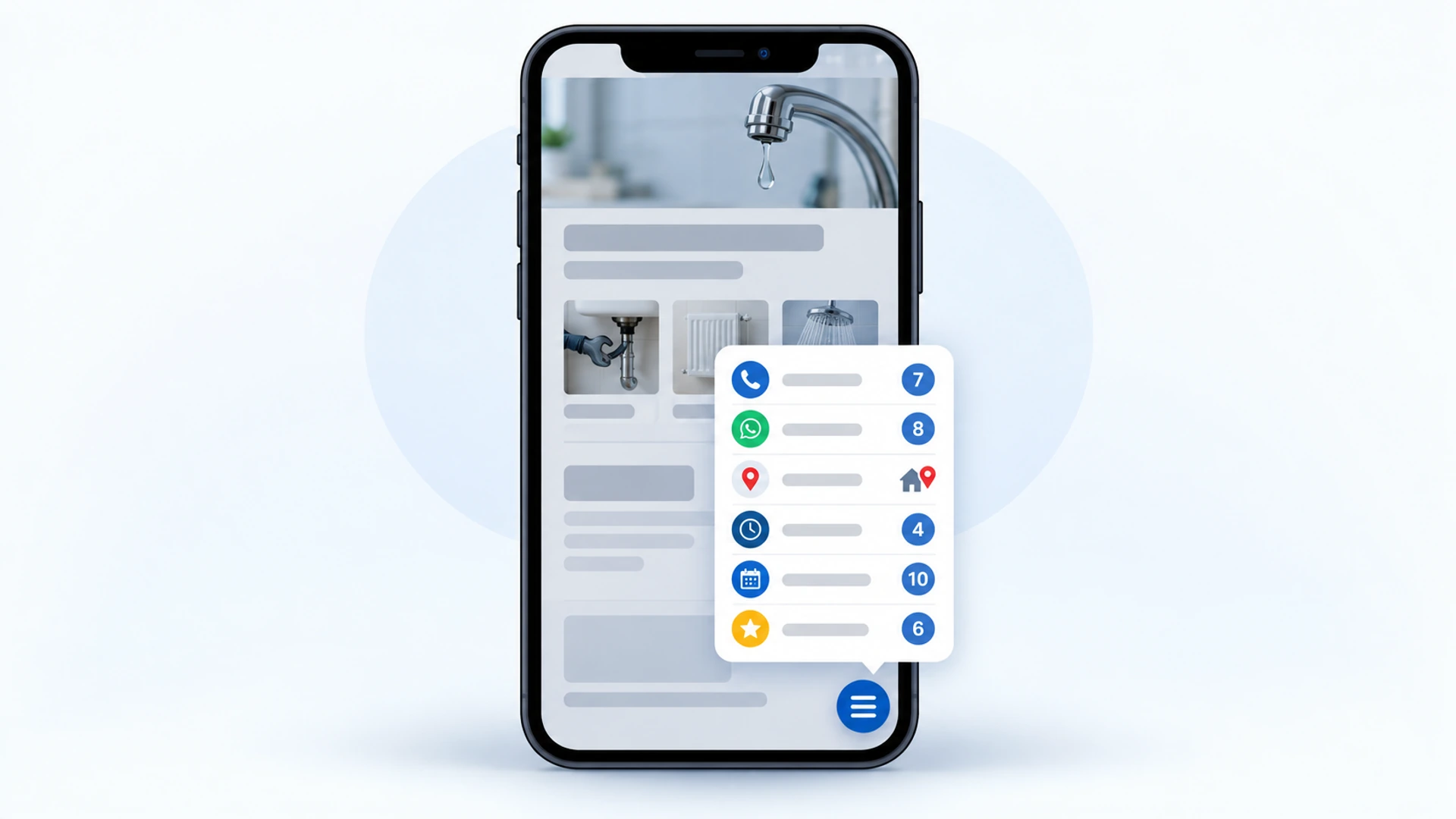
Checks 4 and 7 to 10 fail in different ways, but we repair them all with one launcher in the corner of every page. It opens your call button, hours, message route, form and booking link as a short list, so nobody has to find the contact page first. That launcher is a Flidu Contact widget, from the Website Widgets product line.
Create The Widget
- Sign up, open Website Widgets in the sidebar and click Create Your First Site. If you made a site during sign-up, open its Channels tab.
- Enter a name, your domain (as example.com) and a notification email. Under Starting Setup choose Start from scratch; the other option adds a Contact Form, which needs Website Widgets Starter to publish.
- Skip the Channels step. On Appearance, set Position to Bottom right or Bottom left (the corner your own buttons don’t use), then click Create Website Widget on the last step.
Add The Flidu Channel For Each Failed Check
Each fix is a channel. On the widget’s Channels tab click Add Channel, pick one, fill in its fields, then click Save as Draft and Publish changes.
| Failed Check | Channel To Add | What You Fill In | Website Widgets Plan |
|---|---|---|---|
| 4. Hours | Business Hours | Each day’s times, Timezone (such as America/Chicago), a Note | Starter |
| Address (local) | Find Us / Maps | Business Name, Address, Map Link | Free (one location) |
| 6. Proof | Leave a Review | Review link | Free (one platform) |
| 7. Call | Custom Link | Display label, Link URL, Phone icon | Free (one per widget below Business) |
| 8. Message | Phone number, Agent name, Prefilled message | Free (one number) | |
| 9. Form | Contact Form | Notification email, Success Message | Starter |
| 10. Booking | Book Appointment | Booking URL, Button Label | Starter |
For check 7, add Custom Link (under Social & Links): “Call now” as the Display label, your phone number with its country code in Link URL, the Phone preset icon. A tap opens the dialer; on a desktop it does nothing unless a calling app is installed. Flidu counts it as a Custom Link click, not a completed call.
WhatsApp needs the country code too; use Test on WhatsApp in the editor before you publish.
Business Hours is the check 4 fix: a visitor who opens it sees your week, each day’s hours or “Closed”, today picked out, your Note underneath. It doesn’t know a public holiday is coming, so put “Closed on public holidays” in the Note. Find Us / Maps is for the address: a row that opens your Map Link.
With the channels published, open the Install tab, copy the snippet and paste it once, before the closing body tag of your site or in your platform’s custom-code area (the install guide covers hosted platforms). Load the site, click Verify Installation, then run your failed checks again. Anything you publish later appears without touching the snippet.
FAQ And Ask AI For Repeated Questions
A pass on checks 4 to 6 means the answer is on the site, not that a visitor finds it. For questions you answer every week, the FAQ channel, from Website Widgets Starter, takes a Question and an Answer per entry.
Ask AI is the other route, from the separate AI Chatbot line, which has its own Free plan (100 AI messages a month, 50 indexed pages). In AI Chatbots, click Create AI Chatbot, add your website under Data Sources, press Start indexing and, on the last step, choose Add to an existing Website Widget. Ask AI then stays a draft until you click Publish Ask AI on the assistant’s Preview tab. It’s built to answer from sources you approve and to say when they don’t cover a question. If no page states your prices, Ask AI can’t either.
The Eleventh Check Is On Paper: Who Answers Each Channel
The ten checks test whether a stranger can reach you, not whether anyone answers, and no widget answers for you. A button that goes unanswered for two days is worse than no button.
So list every contact route on the site with three cells beside it. Say you run a plumbing firm with two vans and one person in the office:
| Route | Who Answers | Reply By | When They Are Away |
|---|---|---|---|
| Phone | Dana, office | Picks up 8 to 5 | Voicemail, checked at 6 |
| Sam, owner | Same working day | Dana has the phone | |
| Contact form | Dana | Next morning by 10 | Forwards to Sam |
- Write a name, not a role. “The team” is how messages sit unread.
- Pick a reply time you’d print, then print it: each channel has a Description, the line under its title, for “We answer WhatsApp the same working day.” On a one-number WhatsApp channel it replaces the default “Available 24 hours”.
- Give every route one cover. Sick days turn up in the first month.
- Take an empty row off the site. In the channel’s editor, Disable live takes it off your site and keeps its settings.
Pass: every cell is filled in, and a test message from an outsider got a human reply inside the promised time. Fail: one blank.
We don’t know what reply time your customers expect. A modest promise you keep beats a bold one you break in week two.
Local Business Website Checklist: Three More If Customers Visit You
- Tap the address. Pass if a maps app opens with the pin on your door. If not, Find Us / Maps above is the fix.
- Compare name, address and phone number with your Google Business Profile. A mismatch leaves customers guessing which is current.
- Look for arrival notes: parking, which entrance, which floor. In Find Us / Maps, add them to the Description with the address.
Score It, Then Fix The Fails In This Order
Count the passes. Ten, plus a full row on paper, means the site isn’t what’s holding you back (website traffic but no enquiries starts with who is arriving). Anything less, and we’d fix in this order:
- First, checks 1 to 3: when the page is slow or vague, nobody reaches the rest.
- Next, checks 7 to 10 and the who-answers row. Those visitors had already decided to contact you.
- Last, checks 4 to 6. Hours go in the widget; the price and the proof need writing first.
The Whole Service Business Website Checklist On One Screen
Copy this into your notes app and run it again after any redesign.
SETUP: Wi-Fi off, private tab, arrive from a search
1. Home page readable by a slow count of three
2. First screen names the service and the place
3. Nothing covers the screen, no pinching
4. Hours for today in two taps, same as Google
5. A price, a "from" figure or a range
6. One fact a stranger can verify
7. Phone number opens the dialer
8. The message route I would choose opens and delivers
9. Form sent from the phone reaches a mailbox someone reads
10. Every other button leads somewhere finished
ROW: each route has a name, a reply time and a cover
IF CUSTOMERS VISIT: address opens a map, details match Google, arrival notes
If There Is No Real Site Yet
Some readers fail most of these for one reason: all they have is a link-in-bio page or a social profile, with nowhere to put hours, prices or proof. A widget is the wrong first step there, with no pages to sit on. Our sister product Nichevio (opens in a new tab) is built for that gap: a mobile-first profile site that shows your services and, on some plans, takes booking and quote requests.
Last, Hand The Phone To Someone Else
You’ve just marked your own homework. So give the phone to someone who has never seen the site and ask two things: are we open on Saturday, and roughly what does a first visit cost? Don’t help.
Watch where their thumb goes first, and where it stops. Two minutes of that shows which of your passes were generous.
Frequently Asked Questions
What should a service business website include?
What does every local business website need?
Should I put prices on my service website?
Do I need a booking option on my website?
What is the most important thing on a homepage?
 Conversion & Visitor ExperienceThe Questions Your Website Should Answer Before Anyone Calls
 Conversion & Visitor ExperienceWebsite Traffic But No Enquiries? Check These Four In Order
 Conversion & Visitor ExperienceNobody Fills Out Your Contact Form. Is It Even Working?
 Website WidgetsStop Your Chat Widget Covering Content On Mobile