The Questions Your Website Should Answer Before Anyone Calls
You already answer them by phone every week. Find your real pre-sale questions in an afternoon, then set up Flidu so visitors get the answers before they call.

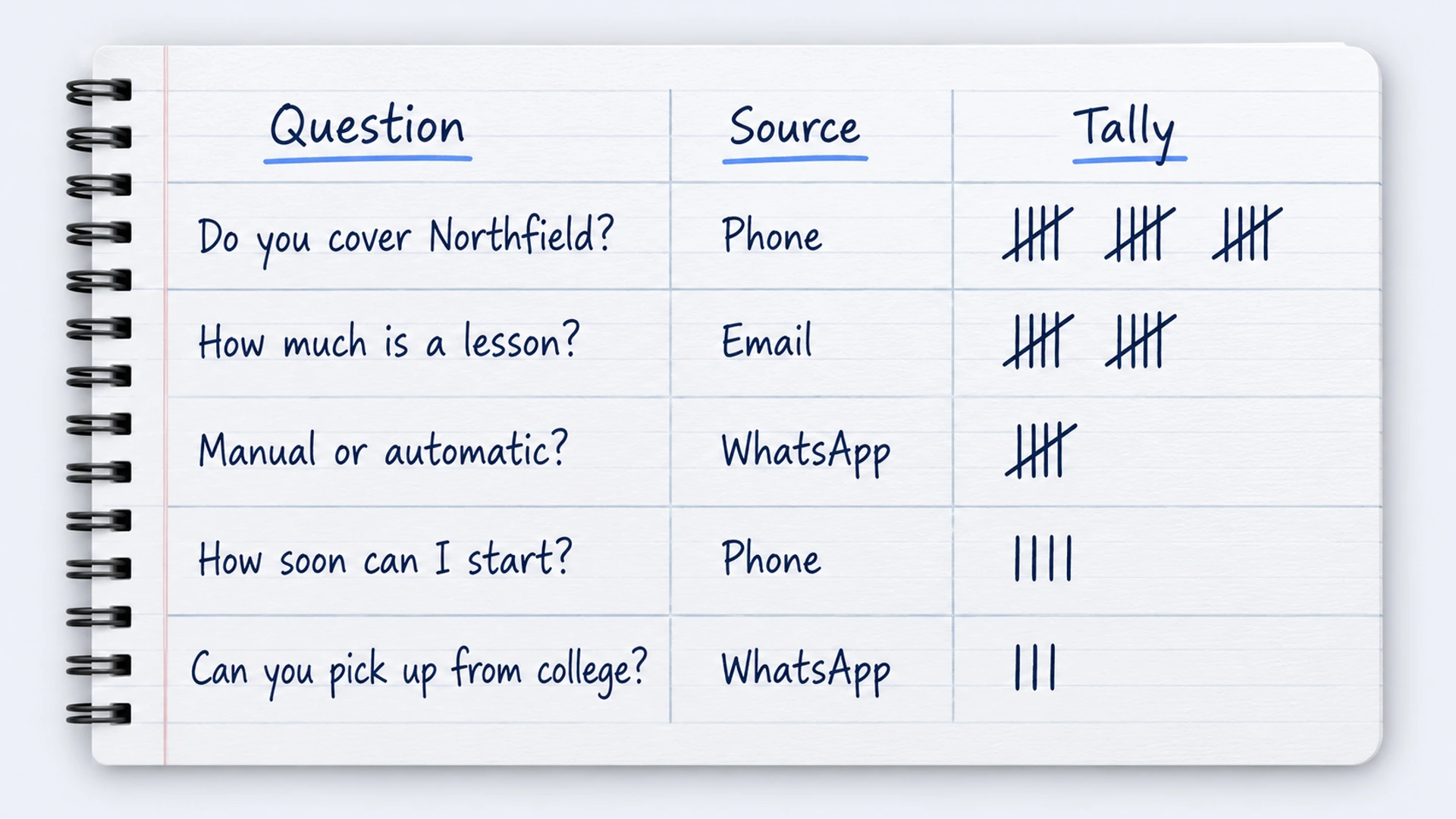
Imagine one week at a driving school with two instructors and one phone, which the owner answers between lessons. On Monday a parent asks whether they cover Northfield. Before lunch, someone wants to know the price of a lesson and whether ten come cheaper. Then it’s manual or automatic. How soon could my daughter start? Can you collect her from college instead of home?
By Friday she has given those five answers so often she could recite them in her sleep, usually from a parked car with a learner waiting. Every one of those callers had already looked at the website. They called because the site didn’t say.
Those five are the questions your website should answer before anyone calls. They came from her phone, and no checklist would have produced them. And the callers were the patient ones: nobody can count the visitors who had the same questions and just left.
Your own five are in your sent mail, your message threads and the head of whoever picks up. Getting most of them onto paper takes an afternoon and a notebook. After that the answers go on your pages, and Flidu, the website widget we build, keeps them within reach on every page.
Why A Borrowed List Will Not Get You There
Search for advice and you’ll find lists of the seven or ten questions your website should answer: what do you do, can I trust you, how do I contact you. They’re true. They’re also categories, and you can’t paste a category into a page. Real questions are narrower, and they arrive in the customer’s wording, which is rarely yours. You say “intensive course”. They ask “can I pass in two weeks”.
So you find your own. The work has three stages: collect, group and place.
Stage One: Collect The Questions You Already Answer
Draw three columns on a page: the question exactly as it was asked, where you found it, and a tally, so that when a question turns up again you add a mark instead of a new line. Go back about three months (a rule of thumb: far enough for questions to repeat, recent enough that your prices haven’t moved).
Write each question down in the customer’s own words, typos and all. “Do u do automatics” is data. “Transmission options” is your summary of it, and summaries are how websites end up sounding like brochures. Leave names and phone numbers off the sheet.
Start With Your Sent Mail
The inbox is the wrong place to look. It’s mostly newsletters and supplier invoices. A sent folder is nearly all replies to people, each one sitting on top of the question that prompted it. In Gmail, this search lists what you’ve sent in the last three months:
from:me newer_than:3mOpen each thread that began with a new customer and read only their first message. Skip existing customers chasing work in progress; that’s support, a different list.
Then Message Threads And Call Notes
Messages are where people ask what feels too small for an email: are you open Saturdays, is there parking. Scroll back through the first few messages of every new conversation in WhatsApp, Instagram, Messenger and plain texts.
Phone calls leave nothing to search unless somebody keeps notes. If nobody does, start now: keep the sheet by the phone for two weeks and add a mark for each question a caller asks before they say what they want to book. And ask whoever answers which five questions they’re most tired of hearing. We’d bet that list is close to right.
Stage Two: Group Them Into The Questions Your Website Should Answer
Stage one leaves a page or two of lines. Now cut it down.
- Strike everything asked after the sale. “Where’s my invoice” isn’t stopping anyone from calling.
- Merge lines that mean the same thing, and keep whichever wording appeared most.
- Sort the survivors into six buckets and add up the marks in each: fit (do you do my thing, in my area?), price, timing, process (what happens after I get in touch?), trust and logistics.
- Label every line a blocker or a curiosity. A blocker is a question the person needs answered before they’ll get in touch at all.
Check Your List Against Businesses Like Yours
Use these to check your list, not to replace it. If one is missing from your tally, see whether your site already answers it. That may be exactly why nobody asks.
- Trades and home services. Do you come out as far as my town? Is there a call-out fee? Can you come this week?
- Clinics and appointment-based practices. Are you taking new patients? Do you accept my insurance?
- Consultants, agencies and freelancers. Do you work with businesses my size? How do you charge, and who will actually do the work?
- Classes, studios and courses. Is this right for a complete beginner? Can I try one session first?
An empty price bucket can mean your prices are clear, or that the people who worried about cost never called to ask. Assume the second until your site states a price.
Rank The Questions Your Website Should Answer First
Frequency on its own will mislead you. “Is there parking” may collect more marks than “do you take nervous drivers”, but only the second decides whether somebody calls. Lines with many marks and a blocker label go to the top. Five to ten is a sensible list to work on (our rule of thumb). Thirty won’t get written.
Stage Three: Place Each Answer, Starting With A Page
Placing has two halves. First the answer gets written into a page, which is your job; no software does it for you, ours included. Then it gets put within reach of a visitor on some other page. Give each answer one home, because answers kept in three places drift apart: the FAQ says 48 hours’ notice to cancel, the booking page says 24, and the phone rings anyway.
If most new callers ask it, it isn’t a frequently asked question. It’s missing copy. Put the answer where the doubt comes up, as a plain statement. The driving school’s service area belongs on the first screen of the homepage, with town names in it: “Lessons across Northfield, Eastbrook and Hill Park, with pickup from home, work or college.” One line, and two of the five questions are gone.
Do the same for each blocker: lead time beside the booking button, what’s included beside the service. Small, stable answers such as cancellation terms can share one FAQ page. Then run the service business website checklist to see how it all reads on a phone.
Don’t dodge price. Owners want to answer it in person, visitors want it before they’ll speak to anyone, and we side with the visitor. So does Jakob Nielsen’s long-standing list of web design mistakes (opens in a new tab), which calls leaving out prices the worst example of failing to answer users’ questions. A range, plus the two or three things that move a job within it, is enough.
[Service] usually costs between [low] and [high].
It costs more when: [two or three real reasons].
The price includes: [what is in]. It does not include: [what is extra].
For an exact figure, send us: [what you need in order to quote].
Put The Answers On Every Page With Flidu
Good pages still lose people. Someone lands on the booking page from a search with the pickup question in their head, and the answer is on a homepage they never saw.
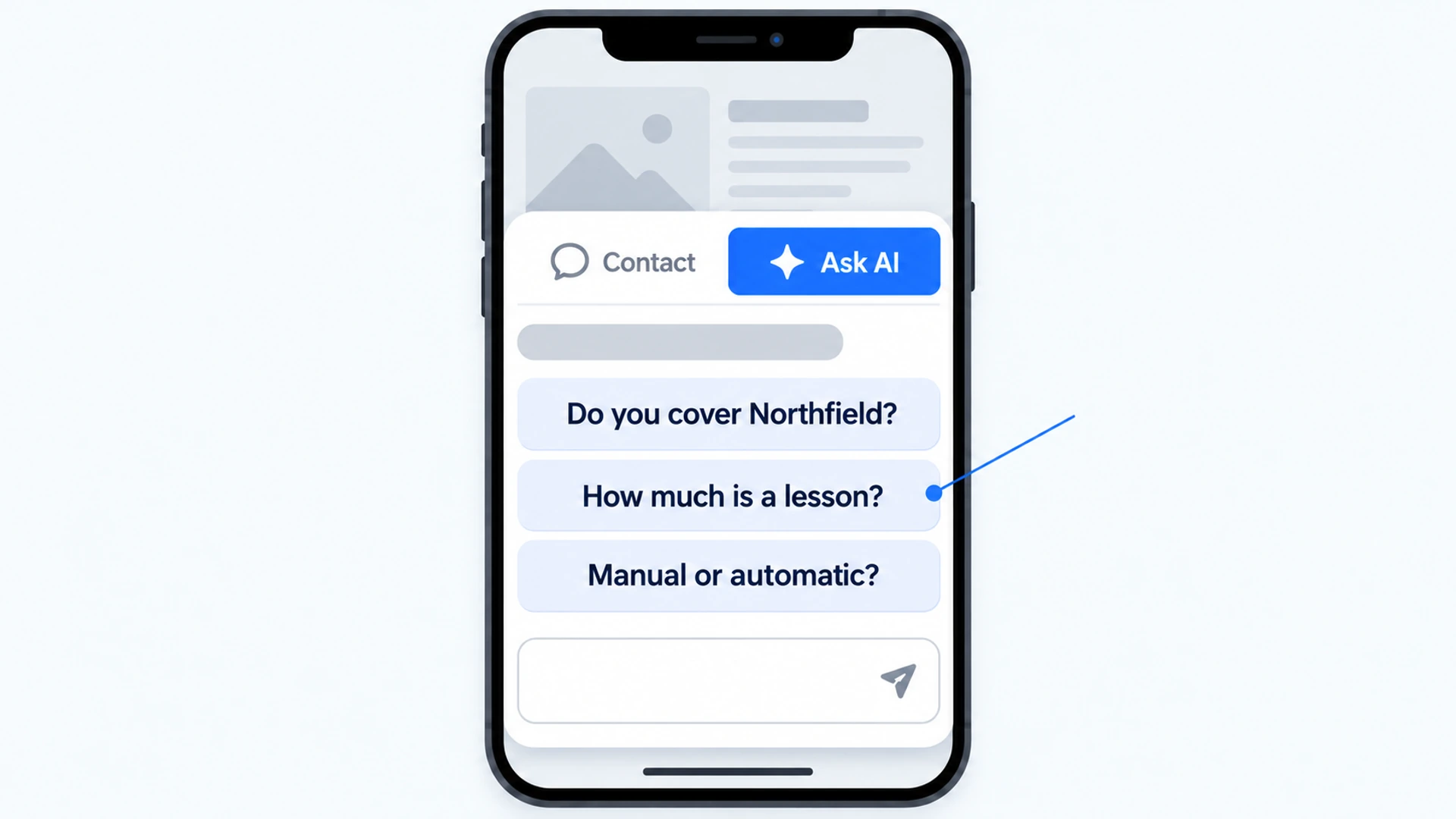
Putting each answer within reach of whichever page a visitor is on is what we build Flidu for, so weigh our advice accordingly. It’s one widget in the corner of your site with two sides: Contact, a set of channels that includes an FAQ, and Ask AI, an assistant that answers from the pages you just wrote. They’re separate product lines, Website Widgets and AI Chatbot, each with its own plans and its own Free plan.
The FAQ Channel For The Five Everyone Asks
Flidu’s FAQ channel puts your top questions and their answers inside the widget, so a visitor can open them from any page. It starts on Website Widgets Starter. On Free you can set it up as a draft, but visitors won’t see it.
- In the Flidu dashboard, open Website Widgets and pick your widget. If you don’t have one yet, the New Website Widget flow creates it in five short steps.
- Go to the Channels tab and click Add Channel. FAQ sits in the Content group.
- Click Add Question. Paste the question as it reads on your tally sheet, then the answer as it reads on your page.
- Repeat for your top five to ten, in tally order.
- Choose Save as Draft, then Publish changes. Nothing shows on your site until you publish.
The channel is a copy, and the page is still the home. When the cancellation terms change on the page, change them here the same day.
Ask AI For The Questions Asked Twice A Year
An FAQ that tried to hold those would run to pages. Ask AI takes them instead: a visitor types the question in their own words, and the assistant answers from sources you’ve approved. With Source Cards on, it can list the pages it looked at under the answer.
- Open AI Chatbots in the dashboard and click Create AI Chatbot. The flow has five steps, starting with Basics.
- At Data Sources, click Add Source, choose Manual URL List and enter the pages that now hold your answers, one per line, up to 25 on one website. Save it and click Start indexing. AI Chatbot Free allows one such source, 50 indexed pages per assistant and 100 AI messages a month, preview questions included.
- Continue past Behavior and Fallback to Preview & Connect. Once indexing has finished, ask your ten questions in the preview there, the way customers ask them.
- Still on that step, pick Add to an existing Website Widget, choose your widget and click Connect Now, so Contact and Ask AI become two tabs in one launcher. (Install as Ask AI-only is the other option, without Contact.)
- Click Create AI Chatbot. An assistant added to a widget stays private until you choose Publish Ask AI on its Preview tab.
- On the assistant’s Suggested Questions tab, click Add question, type the top line of your tally and choose Set Live. Visitors can tap these when Ask AI opens: up to three live at once on AI Chatbot Free, ten on Starter.
- For a fact that lives on no page, click Add Source on the Data Sources tab, choose Manual Q&A (from AI Chatbot Starter) and index it. It’s one more source, so the assistant may rephrase your answer.
If the widget isn’t on your site yet, open its Install tab, copy the snippet and paste it once, just before the closing body tag. The install guide covers hosted builders such as WordPress and Squarespace. Contact and Ask AI share that one snippet, and later changes go live from the dashboard.
What This Setup Will Not Do
Ask AI knows your business only through the sources you approve. Ask it about weekend lessons when no page mentions weekends and it’s instructed to say it doesn’t have enough to go on. The AI writes that reply itself, so the wording varies, and there’s no fallback message for you to edit. In a widget that also has Contact channels, the visitor can switch to the Contact tab.
The FAQ channel isn’t one of the assistant’s sources either, so an answer that lives only there is invisible to Ask AI. And nobody is typing replies on the other side: Flidu answers from what you wrote and, where you’ve added Contact channels, gives the visitor a way to reach you.
An assistant sitting on thin pages has little to answer from, so get your pages ready for an assistant before you switch one on. The pricing page has the current plans for both lines.
Keep Finding The Questions You Missed
Leave the sheet by the phone. A month after the new copy and the widget go live, tally for another two weeks. You’re hoping the old top five slide off the page and callers open with something more specific: “Can you do Thursday at four?” in place of “Do you cover my area?”
The assistant gives you a second list, and this one includes people who never rang. From AI Chatbot Starter, its Analytics tab lists Top Questions and Unanswered Questions, and a line under the second is a question that found no matching source: usually a sentence your site is missing. Write the sentence, click Recrawl on the source, and ask again on the Preview tab. (Recrawls are limited by plan, so batch your edits.)
That list has a monthly routine of its own: what to do with unanswered chatbot questions. On AI Chatbot Free you see usage counters only, so the paper tally stays your instrument.
We can’t tell you how many silent visitors you’ll win back; nobody can count calls that never happened. What you can count is what people still need to ask, and that list should get shorter and stranger each time.