Chatbot Giving Wrong Answers? What To Do In The First Hour
A customer is holding a screenshot of your bot saying something false. Ten minutes for them, twenty for the decision, thirty to trace the answer to its page in Flidu Ask AI.

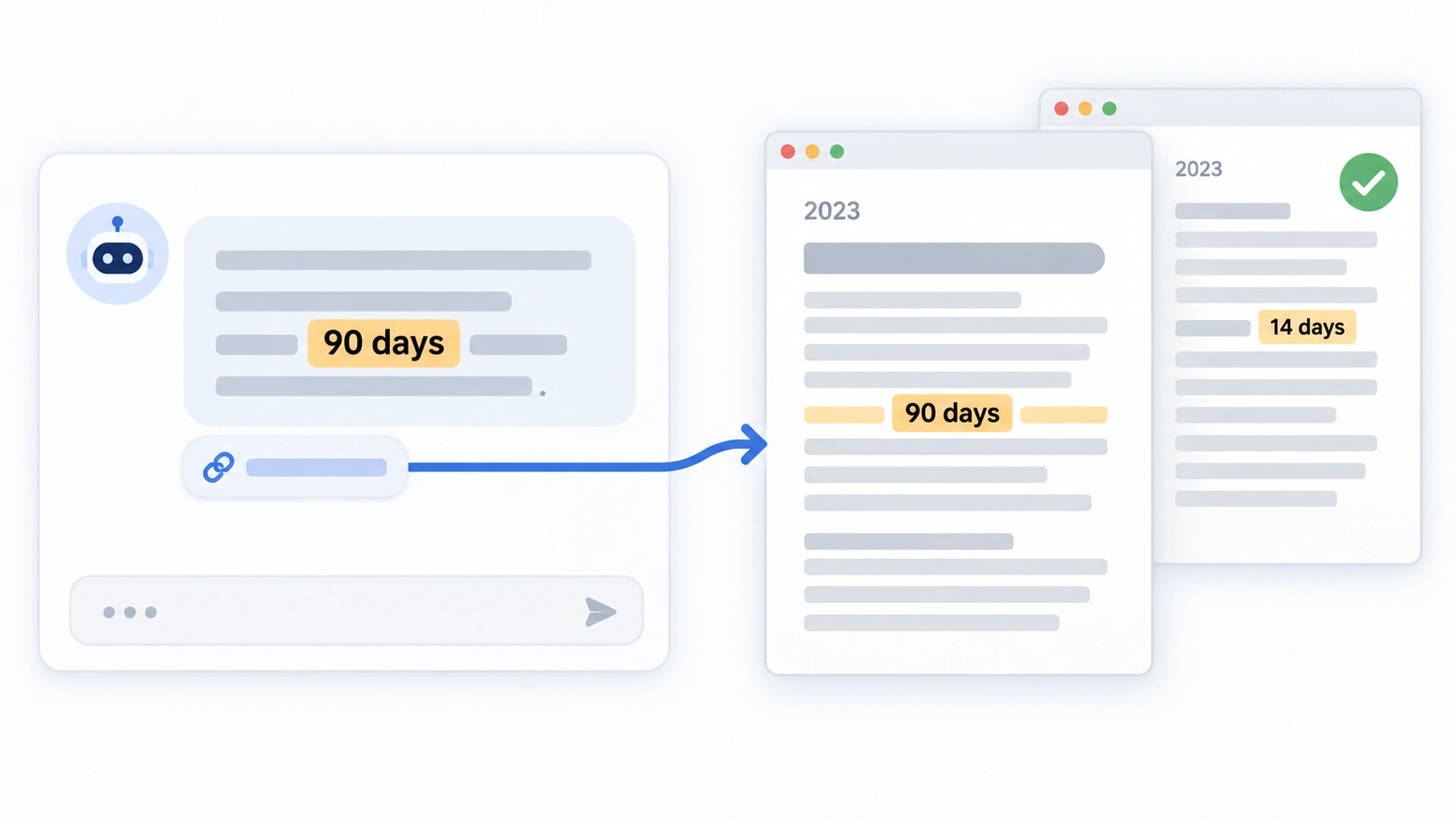
Say the email lands at ten past four on a Friday. The subject line is “Is this right?” and the attachment is a screenshot of the chat on your own website. A customer asked whether a jacket bought six weeks ago could go back, and your bot told them returns are accepted within 90 days. Your policy is 14.
The instinct is to open the settings and start changing things. Hold off. A chatbot giving wrong answers looks like a software fault, but for the next hour it is a customer problem first and a publishing problem second. The software comes third, and it may turn out to be innocent.
Here is that hour as we’d spend it. We build Flidu, whose assistant is called Ask AI, so the steps use the real names from its dashboard.
Chatbot Giving Wrong Answers: The First 10 Minutes
Three jobs, in this order, because the second stops being possible the moment you start fixing things.
- Keep the evidence. Save the screenshot, then get the exact words the customer typed, because “can I return this?” and “what’s your refund policy?” can pull different text from your site. On AI Chatbot Starter and above, the conversation is under Analytics, AI Chatbot, Chat Logs, with the reply and its sources. AI Chatbot Free shows usage counters only, so ask the customer.
- Ask the same question yourself. Word for word, in a private browser window, on the live site. Screenshot the reply and any Source Cards under it. Change nothing yet. Replies can vary, so if it answers correctly, try twice more.
- Write to the customer. Put the correct fact in the first lines, apologize once, and say what happens next.
Hi [name],

Thank you for sending this, and I'm sorry. The answer our website chat gave you was wrong.

Our returns period is 14 days from delivery, not 90. [One sentence: what you will do for this customer.]

We are correcting the chat today so nobody else is told the same thing. If anything about your order is unclear, reply to this email and it comes straight to me.

[Your name]
Look at what the note leaves out. It doesn’t blame “the AI”, as though the chat were a contractor who wandered in off the street. Your website told the customer this. One sentence is still blank, because you haven’t decided it yet.
By Minute 30: Decide Whether To Honor The Answer
Our view, and it is a rule of thumb, not law: if the customer already acted on the answer (bought, booked, traveled) and the cost to you has a ceiling, honor it for that customer, once, and say plainly that it’s a one-off. An argument with someone holding a screenshot from your own site rarely costs less than the refund.
There is law behind that instinct. In February 2024, a tribunal in British Columbia found Air Canada liable (opens in a new tab) after its website chatbot told a passenger he could claim a bereavement fare after traveling, the opposite of the airline’s own policy page. Air Canada argued it couldn’t be held liable for what its chatbot said. The tribunal disagreed: the airline is responsible for everything on its website, static page or chatbot.
One small-claims ruling in one province isn’t the law where you trade, and we build software, not legal arguments. Still, “the bot said it, not us” is not a defense to plan around.
The rule bends when nobody has acted on the answer yet, or when the mistake was plain on its face, like a sofa at a tenth of your usual price. And never honor anything unsafe or unlawful: send the short correction and take legal advice before saying more.
Before Minute 30 Is Up, Pull The Topic In Flidu
Your customer is one of an unknown number who asked, so make sure the assistant can’t repeat that answer this afternoon. In the Flidu dashboard, open AI Chatbots and choose the assistant. Three moves, the bluntest last:
- Ignore the page. If a Source Card from minute five names a page that is plainly dead (an old post, an expired offer), open the Data Sources tab, find it under Indexed Content and press Ignore. It drops out of answers straight away, with no recrawl, on every AI Chatbot plan, Free included.
- Add a Correction. In Settings, under Corrections / Preferred Answers, choose Add Correction, paste the question as the customer worded it and write the preferred answer. It’s indexed straight away, but it’s a patch: the wrong page is still there, and Ask AI treats a Correction as a source, not a script. Corrections start on AI Chatbot Starter.
- Pause Ask AI. When neither is possible in ten minutes and the topic touches money, safety or contract terms, press Pause Ask AI on the Preview tab. Ask AI stops responding to visitors, any Contact options on the same widget stay active, and you can resume anytime.
After an Ignore or a Correction, test in the Preview tab, a chat only you can see (questions there count toward your monthly AI messages). Ask in the customer’s words, then bluntly (“returns?”). If the old answer still comes back, move one option down the list. Pausing feels drastic, but it costs less than a second customer holding the same wrong promise.
By Minute 60: Trace The Answer Back To Its Page
Why A Chatbot Giving Wrong Answers Is Usually Quoting You
An assistant trained on your site doesn’t know your business. It holds a copy of your pages, and when a question comes in it pulls the passages that look closest and writes a reply from them. So a wrong answer usually has an address. That’s why Ask AI is built to answer from sources you approve and lists them under the reply: an answer with nothing attached gives you nothing to trace.
How To Find The Page In Flidu Ask AI
- Open the Source Cards. In the Preview tab, ask the customer’s question. The Sources list under the reply names up to three pages, files or Manual Q&A entries Ask AI looked at. Open each and read all of it, including the parts you’re sure are fine.
- Check what was read, and when. The Data Sources tab shows a “Last indexed” date on each source, and Indexed Content below lists the pages the assistant holds. Look for anything you didn’t choose on purpose, such as tag archives or an old offer page, and for a page you expected that isn’t there. A Website URL or Sitemap source reads a limited batch of pages per crawl; a Manual URL List reads exactly the pages you list.
- Hunt for other copies. Flidu shows which pages were read; it doesn’t search their text. Put the wrong number into your site’s own search or your CMS page list and note every page that carries it.
Two limits. Not every reply has sources; if you never see any, check that Source Cards is switched on under Source References in Settings. And on AI Chatbot Free the Preview test is the whole trace; the Source Pages Used list on the assistant’s Analytics tab starts on AI Chatbot Starter.
The Five Causes And The Repair For Each
Match what you found to one of five causes. Four are on your website and one is in the assistant.
| What It Said | What Tracing Shows | Cause |
|---|---|---|
| “Yes, we’re open on the holiday Monday.” | No page mentions public holidays | 1. The fact is missing |
| “A deep clean is 120.” | The page now says 140 | 2. The copy is stale |
| “Delivery is free.” | True, but only over 50 | 3. The condition is elsewhere |
| “Returns are accepted for 90 days.” | A 2023 holiday post still says so | 4. An old page disagrees |
| “Yes, guaranteed by Friday.” | The page says “usually three to five days” | 5. The assistant is overstating |
Cause 1: The Fact Is Missing
Your site never states it, so the assistant stretched the nearest text to cover. The repair is a sentence on a page. Write the fact in the body of the page where a customer would look for it (Flidu leaves out a page’s header, navigation, footer and sidebar elements), and write the negative too: “We are closed on public holidays.” A fact with no natural page can go in as a Manual Q&A (Data Sources, Add Source, Manual Q&A, then Start indexing on its card), which needs AI Chatbot Starter.
Cause 2: The Copy Is Stale
You changed the page and the assistant still holds the old copy. Ask AI re-reads a source when you ask, not on a timetable, so press Recrawl on that source in Data Sources, wait until it stops showing Updating, and ask again in Preview. A price or hours change isn’t finished until the assistant has re-read the page.
Recrawl is rationed, though. After a crawl, the source card shows when Recrawl is available again, and each plan has a monthly allowance, counted on the assistant’s Usage tab. So correct every page first and recrawl once. If you have to wait, press Ignore on the stale page (no answer beats the old one) and Include again just before you recrawl.
Paid AI Chatbot plans also have Fresh Page Check (Settings, under Answer Intelligence), off by default, which can re-check the page behind an answer before replying. It may slow the reply and doesn’t replace a Recrawl.
Cause 3: The Condition Lives On Another Page
The homepage banner says “Free delivery” and the delivery page adds “over 50”. Nothing the assistant said was false, and the customer still feels misled. No setting fixes this. Put the condition in the same sentence as the claim, on every page that makes it, then recrawl. A banner too short for the condition is too short for the claim.
Cause 4: An Old Page Disagrees
You forgot the old post and the assistant didn’t, and you shouldn’t assume the newer page wins. Unpublish it or rewrite it to point at the current policy; removing the menu link isn’t enough, because a published page usually stays in your sitemap. Then press Ignore on it in Indexed Content.
When a whole section is the problem, open Included & Ignored Pages on the Data Sources tab, choose a match type such as “Path starts with”, type the path and press Add Pattern. Patterns take effect at the next crawl, so follow with a Recrawl and Ignore the worst pages by hand in the meantime.
Cause 5: The Assistant Is Overstating
This one isn’t your content: the page said “usually” and the assistant made it a promise. Tighten the page anyway, because “we can’t promise a delivery day” leaves less room. On AI Chatbot Starter or above, add an instruction under Custom Instructions in Settings, such as “Never promise a delivery date”, and a Correction for the exact question. Then re-test: an instruction is guidance, and a language model can still miss it. If it keeps overstating, contact our team with the screenshots.
The first four repairs are really one job, and How To Prepare Website Content For An AI Chatbot covers the same faults for a whole site.
What Flidu Does Not Do For You
None of this makes answers perfect, and we don’t sell Ask AI as perfect. It knows what your pages say, not what your policy is. It won’t rewrite a page or notice that two of them disagree, and it doesn’t re-index your site by itself after an edit. Those stay your jobs.
Everything marked Starter above means AI Chatbot Starter; Website Widgets is priced separately. AI Chatbot Free still gives you Source Cards, Preview, Ignore, two patterns and a monthly recrawl allowance, so on Free the repair really is the page. The pricing page has the rest.
If your bot isn’t Ask AI, borrow two checks from this hour: can you see which pages an answer drew on, and do you choose which pages it reads? If either answer is no, Ask AI gives you both on AI Chatbot Free, and the setup guide shows the first steps.
How To Stop A Repeat
A chatbot giving wrong answers once is an incident. Twice on the same fact is a process problem, and a few habits deal with it.
- Keep the question. Add today’s question, in the customer’s wording, to a list of test questions, and re-ask the list in Preview after any change to prices or policies. If you have no list yet, Test A Chatbot Before Launch With 30 Awkward Questions gives you one.
- Give every fact one home. A price printed on four pages will sooner or later be right on three. State it once and link to it from the others.
- Read what it was asked. Once a month, on AI Chatbot Starter or above, go through Top Questions and Unanswered Questions on the assistant’s Analytics tab. Our monthly routine for unanswered chatbot questions shows how.
- Decide what it shouldn’t answer. A refund on one particular order, or whether a treatment is safe for one person, needs a person. Keep those answers off the pages the assistant reads, and connect the assistant to a Website Widget with Contact channels, so the visitor can switch tabs and reach you. Chatbot Fallback Message Examples covers that hand-off.